Friday, June 12, 2009

I won a coupon!

There was a RAK given away to one person that posted in a thread on the forum at {gottapixel}. And, much to my amazement, I won a $10 coupon to Digi Sweet Designs store! I was ecstatic!

So I have spent two days trying to decide what to get. I ended up getting a bundle of mini kits. It is called "Take My Breath Away...". Aren't they beautiful?

Take My Breath Away Collection

File Organization Tool Tutorial

How do you organize your files? Do you organize?!

I know I said that I would give you some more tutorials from my layout the other day, but this one is relevant to what I am working with right now and wanted to share this. This is about what I use to organize my photos and digital scrapbooking files. I am not sure if people bother to organize their files and folders very much, but I do. I do it mainly so that I can find files later and always try to think ahead at what I might use to search for something later.

The best program I have found, and have been using it for years now, is called ReNamer by den4b. It is fantastic because it is so simple. At first I used it to organize my photos, and now have found it useful for digital scrapbooking.

Photos:
I keep all of the photos from the same date or event in a folder together. I name each of them according to the date the picture is taken and then I number them sequentially in the order they were taken. If the pictures were taken at a specific location (e.g., the Grand Canyon) or event (e.g., Christmas), I will add that after the date and serial number. If I have time, I will add who is in the picture at the end. Here's an example of a typical file name: 20080803_13_Brooklyn_MarkErin.jpg. I date my pictures with the year first, then the month, and then the day. I have found by trial and error that that is the best way to organize photos in some kind of orderly fashion. As you can see in this example, if I ever use the search to find pictures of my trip to Brooklyn or of Mark, both searches will yield this photograph. Well the focus is supposed to be on digi-scrapping files, so let us move on to that.

Digi-scrapping files:
Now I am new to digi-scrapping so this is still trial and error, but I will tell you about the system I am using right now to organize any kits I purchase or freebies I find online. First I group all items for one kit into one folder and name it {Kit_DesignersInitials_KitName}. I start with "Kit" so that all of the kits will group together. Then I like to have the work of the same designer side by side because I have a habit of remembering the name of the designer instead of kit names. So if I am looking for a kit, it is more likely that I will find it under the designers name.

Once inside the folder, I try to make sure everything in the folder has the same information as the folder. So I rename everything to start with {DesignerInitials_KitName}. I do this so that if I ever do a search for a tag, I will know exactly what kit the tag I am using came from just by the file name. Then I can find the designer's TOU (terms of use) in no time. It is easy to give appropriate credit when you know the name immediately. I also try to make sure common things like buttons, ribbons, pins, staples, tags, and paper are labeled in the file name so that I can do a quick search and find whatever I am looking for.

So what I wanted to do is tell you how to do all of this file renaming efficiently.

Tutorial:
First a disclaimer. I am sure that this program offers more than I know. I am just showing you some of the things I know to do with it.

Okay, so I am going to organize a folder that I downloaded from the SYTYCD contest at digiscrapaddicts.com (no longer available).

Now the first thing I do is find the TOU and the kit preview and put a underscore ("_") in front of these file names. This is my own thing, my own pet peev. I want to be able to find these two files anytime, and by doing this, these two files will be displayed as the first two files in the folder.

Now we can start using ReNamer.

Open ReNamer. Start by selecting all of the files that need to be renamed. To quickly do this use your mouse. Select the first file, hold down shift, scroll down, and then select the last file. Now drag all of those files into the bottom window of ReNamer that says "Drag your files here."
alternative text

Now your files are loaded in ReNamer.
alternative text

Next, click on "Add" to add a rule to rename the files.
alternative text

Below is the screen that opens. We are going to create a rule using "Insert" on the left.
alternative text

Next, place your cursor in the field next to "What:". We want to add the name of the designer and the kit name. I want to put this information in the front of the file name, so I select "Prefix" and make sure that "Skip Extension" is checked.
alternative text

Once you have entered this information, you can click "Add Rule." This will close the window and return you to the original screen. In the screen you can now see a preview of what the file name will be with this rule you just created.

If you are happy with the new file name then you can go ahead with the renaming by clicking "Rename."
alternative text

It will tell you if your renaming is successful. Click OK.
alternative text

Now that these files are renamed you can remove them. Just select them (if you click in the window you can use "Ctrl+A" to select all) and hit the "delete" key. In the picture below I have selected all of the files, just before deleting.
alternative text

Now I want to change some other files. The designer has labeled the papers as "paper," which might work for you. But I like to use the search and when I search for paper I want to find notebook paper and things like that, not 1000s of papers, so I change "paper" to "ppr." It is just my way of creating it easy to search. So I drag the papers into ReNamer.

Then we need to turn off the rule we created above. Just check to turn it off. This is a cool technique because you can create several rules and work with many many files without having to rewrite rules each time you need to do something different.
alternative text

Next click "Add."

This time we want to add another rule, using the Replace rule. So select "Replace." Then where it says "Find:" I will enter paper, and where it says "Replace:" I will enter ppr. Then click "Add Rule."
alternative text

This will preview the new name. Select "Rename." And then click "OK".
alternative text

There, we are done renaming the files.

There is a lot more I can share with you about ReNamer, but I will save that for another night.

Here is where you can find ReNamer: http://www.den4b.com/downloads.php?project=ReNamer.

Thursday, June 11, 2009

and...A Class

I came across an announcement for a free class about photo editing at JessicaSprague.com and thought I'd pass it along. It appears to me to be for Photoshop users, but I figure even those of us that use Photoshop Elements can learn something from it.
alternative text

Wednesday, June 10, 2009

Speed Scrap Layout: Bill Camping 2008

I participated in another speed scrap last night. This time I was at www.stufftoscrap.com.

These are the directions we were given:
Step 1: Pick 3 pictures of the same person from the same event and crop them into circles
Step 2: Pick 2 papers only. One patterned and one solid. Use the patterned as your background and the solid how ever you want
Step 3: Arrange your pictures in a straight line not touching each other
Step 4: Use at least 3 embelleshments. May be recolored as long as it is different colors
Step 5: Add some stitching to your page
Step 6: Title your LO with the name of the person in your pictures
Step7: Add at least 5 Sentences of journaling, then add dropshadows and upload to the gallery
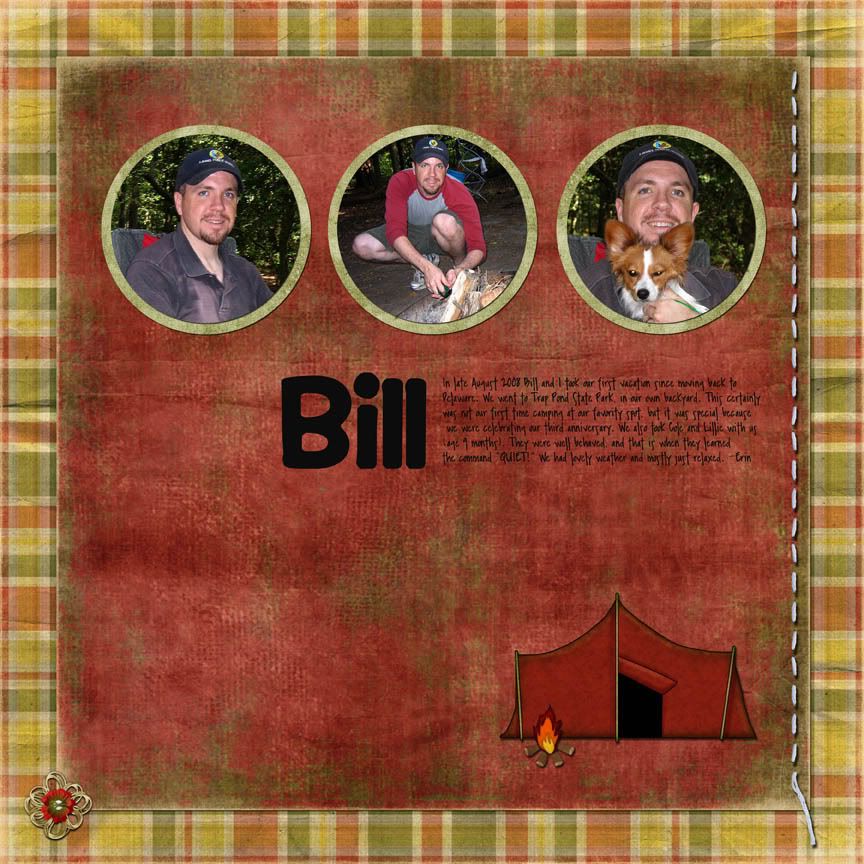
And here is what I came up with:
Bill camping 2008
(click image for larger view)
Credits:
Page Kit (papers, tent and flower elements) - "The Scouting Way Addon" {Freebie} from Raspberry Road Designs by Susan Darter;
Fire element - "My Favorite Things - National Park Fun" from Jady Day Designs by Yari Mower {SYTYCD};
Stitching element - "In This Moment" by Donna Duncombe
Alpha - Howser and Pea Sara Print from kevinandamanda.com
What do you think?

Saturday, June 6, 2009

Creating Cut Outs and a Layout for a Challenge

Note: tutorial further down in this post.
I created a new layout for a challenge I have entered at
Scrap That Idea! The post about the challenge is here. For this challenge we were given an inspiration and had to come up with a layout.

Here is the inspiration:
alternative text

My translation of that is more literal than others. Mine is posted below, but you can visit the gallery and view everyone's layouts here.
Hangin Around
Credits:
Papers for background and butterflies - "Simplicity" by A Work in Progress & "2 Little Bots" by Stacey's Scraps


I can offer you three Photoshop Elements (PSE) tutorials based off of this layout. The first I will discuss in this post called "cut outs" or what I did to create the butterfly shapes from the paper. The other two are how to create your own mask, like I did here using butterflies as you see in the pictures of my dog above; and how to create your own shadows. I will post the latter two tutorials later.

Tutorial
How to Create Cut Outs and Make Papers/Pictures into Shapes:
Okay, are you ready? Let's go. (Note: I try to show you every single step so this is really basic.)
To do this tutorial, you will need a paper or picture that you want to cut in a shape, and the shape you are going for. I am using butterflies like in my layout.

Part 1: Create a Cut Out/Shape
1.) Start by opening PSE and creating a new blank file. Make it big enough to hold your shape.
alternative text

2.) Open the file that has the shape you want to use. My page is a bunch of butterflies.
alternative text

3.) Select the "Rectangular Marquee Tool".
alternative text

4.) Draw a rectangle around the shape you want to use.
alternative text

5.) Select Edit > Copy (or Ctrl+C) to copy the shape.
alternative text

6.) Click on your "new" blank file, and then go to Edit > Paste (or Ctrl+V).
alternative text

7.) Now you have the shape pasted into your new page.
alternative text

8.) Now you can close the shape page and simply view your "new" blank file that now has your shape on it.
alternative text

9.) Double-click on Background in the Layer Palette.
alternative text

10.) Set the opacity of the background to 0%. This turns the background into a transparent layer.
alternative text

11.) Select the shape layer.
alternative text

12.) Select the Magic Wand Tool.
alternative text

13.) Adjust the tolerance so that the Magic Wand Tool selects the entire background and none of the pixels of the shape you are trying to extract. Here I set the Tolerance to 30. Click on the the background (in this case the white area) to extract it.
alternative text

14.) Click delete to get rid of the background.
alternative text

15.) Right-click and choose deselect (or Ctrl+D) to get rid of the marching ants.
Deselect

16.) Next, select the Eraser Tool.
choose eraser tool

17.) Use the eraser tool to erase any areas that did not delete when you used the magic wand.
erase
Now you have created what is called a "mask" in Photoshop. This mask is the shape that we use to cut our paper or photo.

Part 2: Make a Paper/Picture into a Shape
18.) Open the paper or picture that you are going to mask using the shape you just cut out.
erase

19.) Select the Move Tool.
Choose move tool

20.) Click on the shape. While still holding the mouse button down, drag the shape onto the paper or picture.
Drag onto paper

21.) In this scenario, the paper is the background. We want it to be a layer, so we will change that. To do that right-click on the background layer in the layer palette.
Drag onto paper

22.) In the menu that pops up, select "Layer From Background."
Layer from Background

23.) In the box that opens, you can give this new "layer" (the paper layer) a name and click "Ok;" or bypass the naming and just click "Ok."
Layer from Background

24.) Now you can see that the paper is its own layer.
Paper is now a layer

25.) Drag the shape layer below the paper layer.


26.) Now, select the paper layer (the top layer). Then, go to Layer > Group With Previous (or Ctrl+G).


Below I have zoomed in on the results.


27.) Next, right click on the paper layer and choose "Merge Down."


28.) You are finished. The paper or picture is now in the shape of your cut out (AKA mask).

Credit: Brown paper from "Simplicity" by A Work in Progress

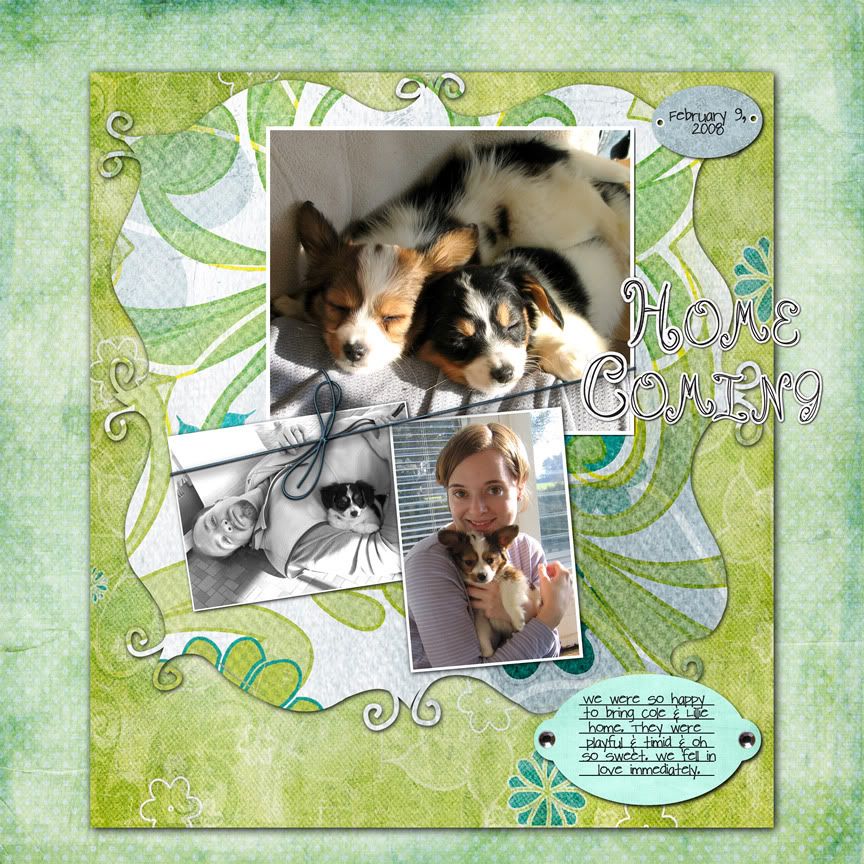
I used the same technique from Part 2 to create the mat behind the pictures in my last layout, "Home Coming."

Credits:
- Mat from "My Secret Garden" by creations by Rachael at http://www.funkyplaygrounddesigns.com
- Floral Papers from "Spontaneous Delight" by Carrie Stephens (see post of layout above for credits)